This illustrated guide walks you through recording, organizing and reporting your drives. Screenshots show myRoadPrints PRO; some controls require the PRO upgrade. Only interact with the app while safely parked. Tap a screenshot to enlarge it.
1. Before departing
- Open myRoadPrints and allow requested Location Services access.
- For active tracking when the screen is locked, allow background location access. For reliable optional Trip Assistant reminders, allow Always Location access and Notifications in iOS Settings.
- Review the vehicle and trip preferences before departure.
2. Start and track a trip
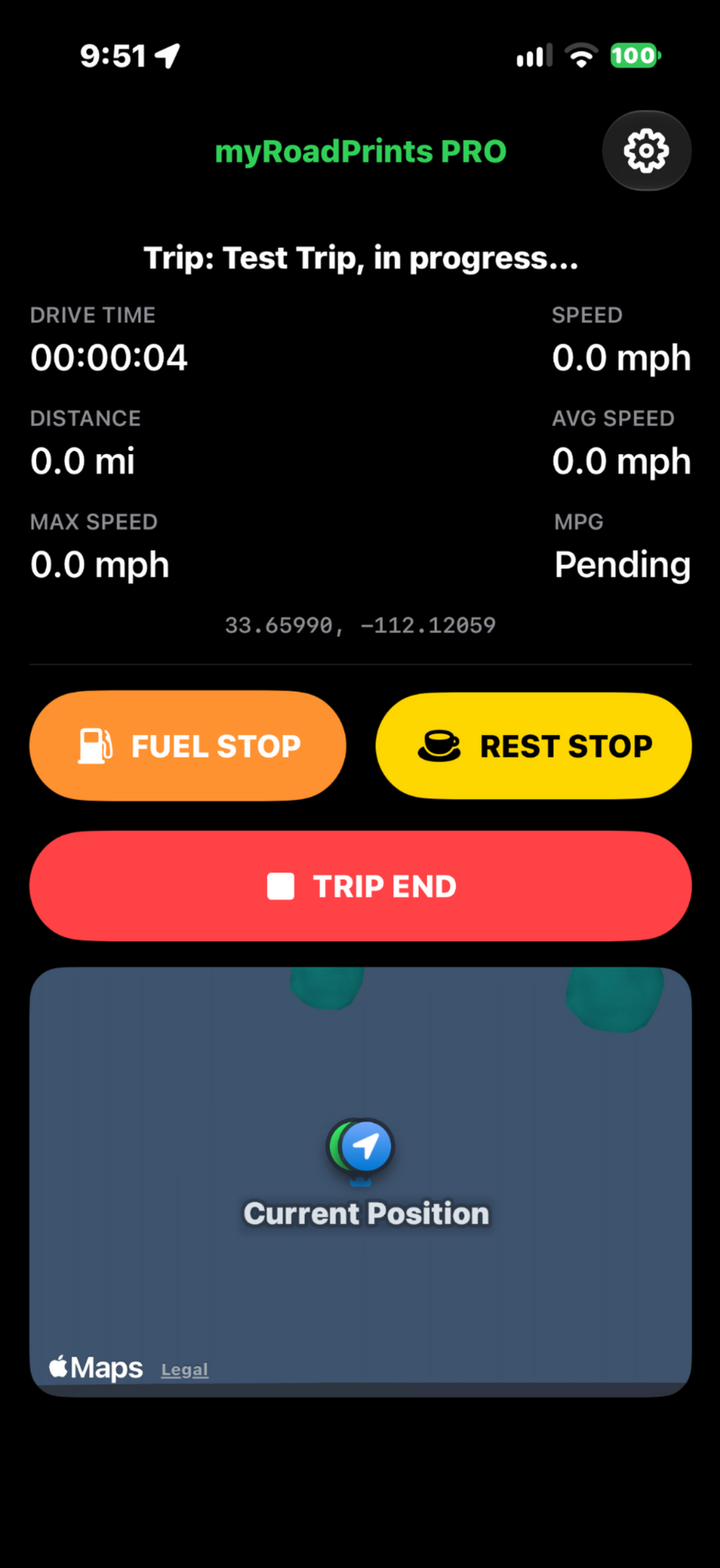
- Start a new trip while parked. Enter the requested trip details and begin recording.
- The active dashboard displays drive time, distance, current speed, average speed, maximum speed and MPG (Pending until sufficient fuel information is available).
- The map shows your current position and the app records GPS route information.
3. Pause for rest or fuel
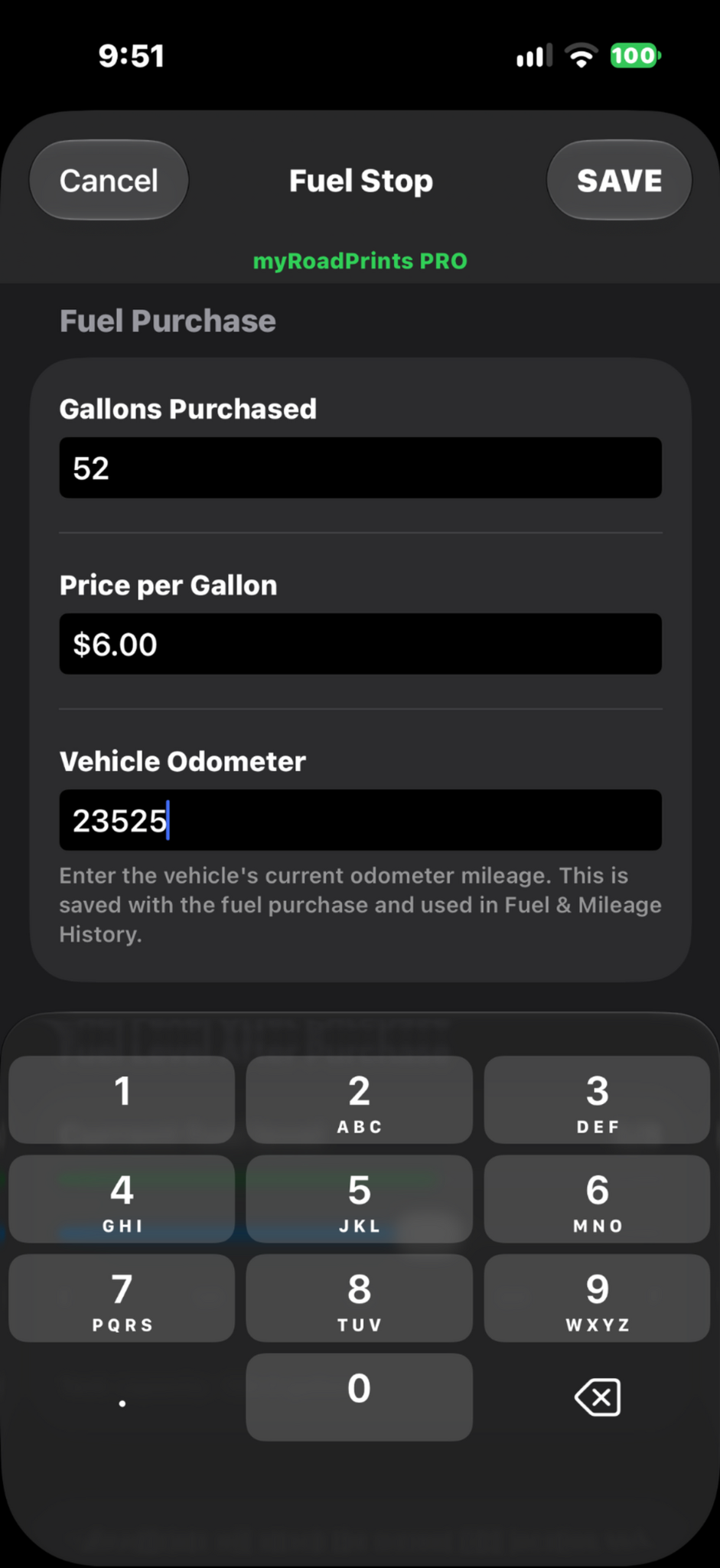
- When parked for a break, tap REST STOP. Resume the trip before departing again.
- For a fuel purchase, tap FUEL STOP when fuel collection is enabled.
- Enter Gallons Purchased, Price per Gallon and Vehicle Odometer. Tap SAVE to record the purchase. The odometer is retained for Fuel & Mileage History.
- Resume the trip when ready. Paused time is recorded separately from drive time.
4. End and review a trip
- At your destination, tap TRIP END and complete any prompts, including ending fuel level if prompted.
- Open VIEW TRIPS to review saved trips. Tap a trip name to open Trip Detail.
- Review the route, statistics and stops. Route colors represent relative speed: cool blue is slower and bright red is faster.
5. Organize trips into Journeys
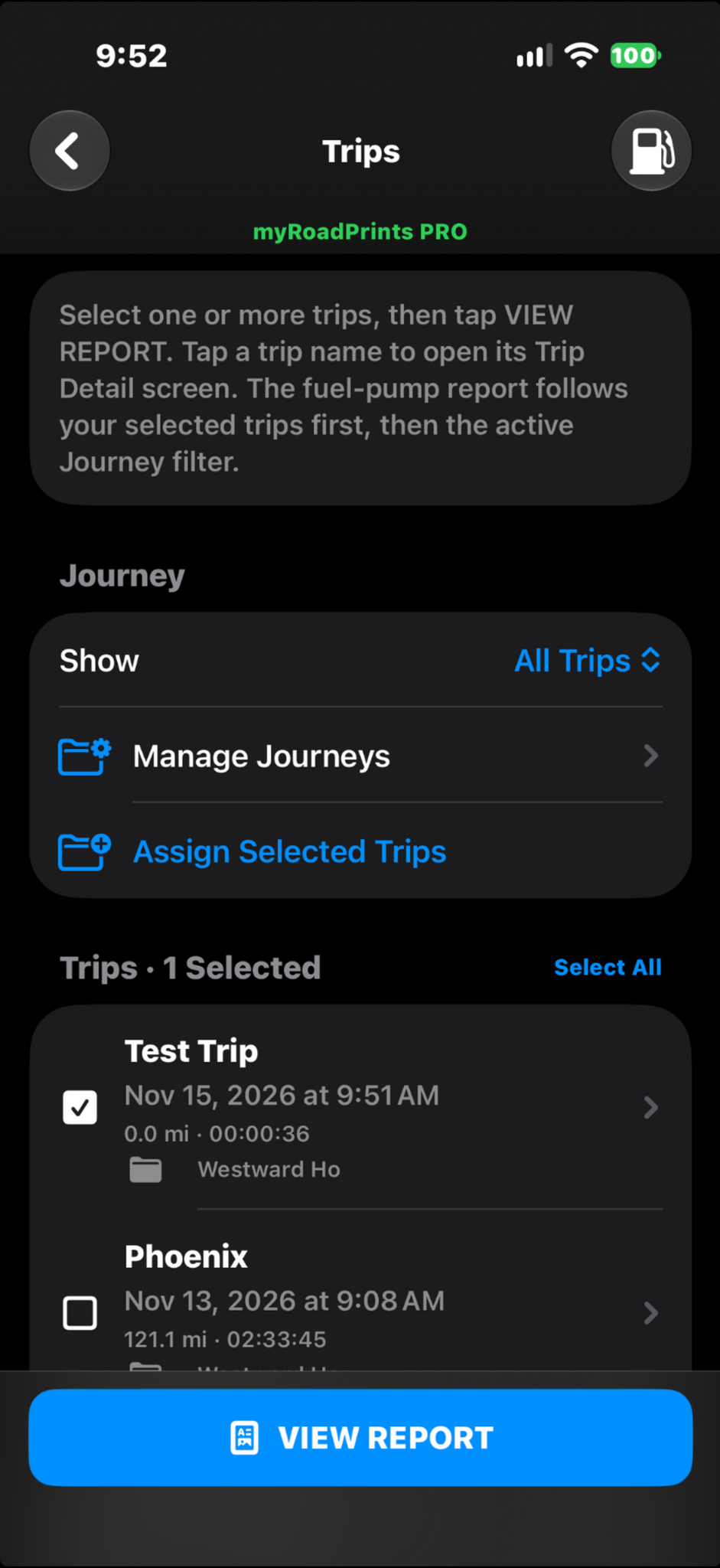
- In Trips, use Show to filter by Journey or view All Trips.
- Tap Manage Journeys to manage your groups.
- Select trip checkboxes, then tap Assign Selected Trips to organize existing drives into a Journey.
- Use Select All when appropriate. Tap a trip name to view detail rather than selecting it for a report.
- The fuel-pump report uses selected trips first, then the active Journey filter.
6. Generate and share PDF reports
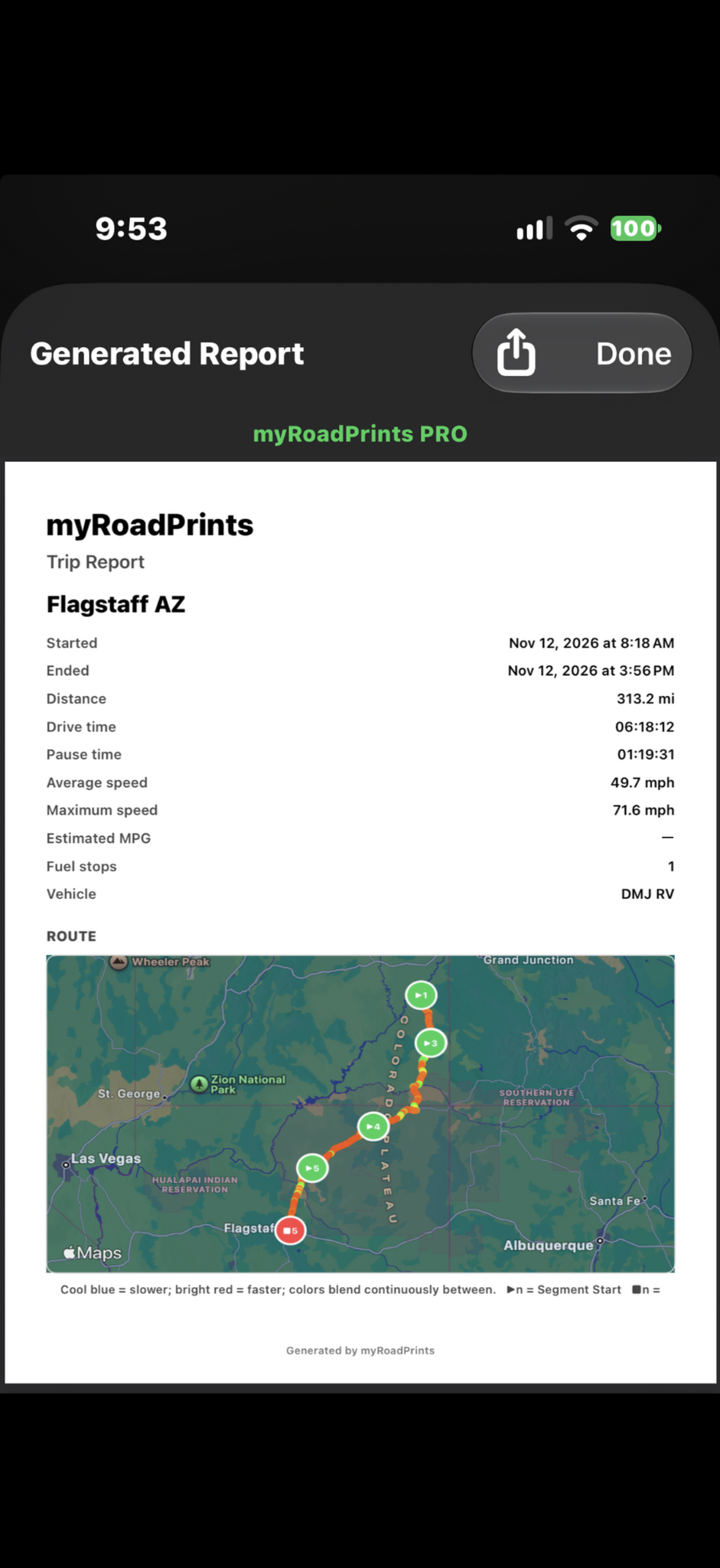
- From VIEW TRIPS, select one or more trips using their checkboxes.
- Tap VIEW REPORT to open the generated PDF. Multiple selected trips can produce a combined report.
- Review the trip statistics and route. The report can include start/end times, distance, drive and pause time, speed, estimated MPG when available, fuel stops and vehicle.
- Tap the Share icon to save or share the report, then Done to close it.
7. Configure PRO preferences
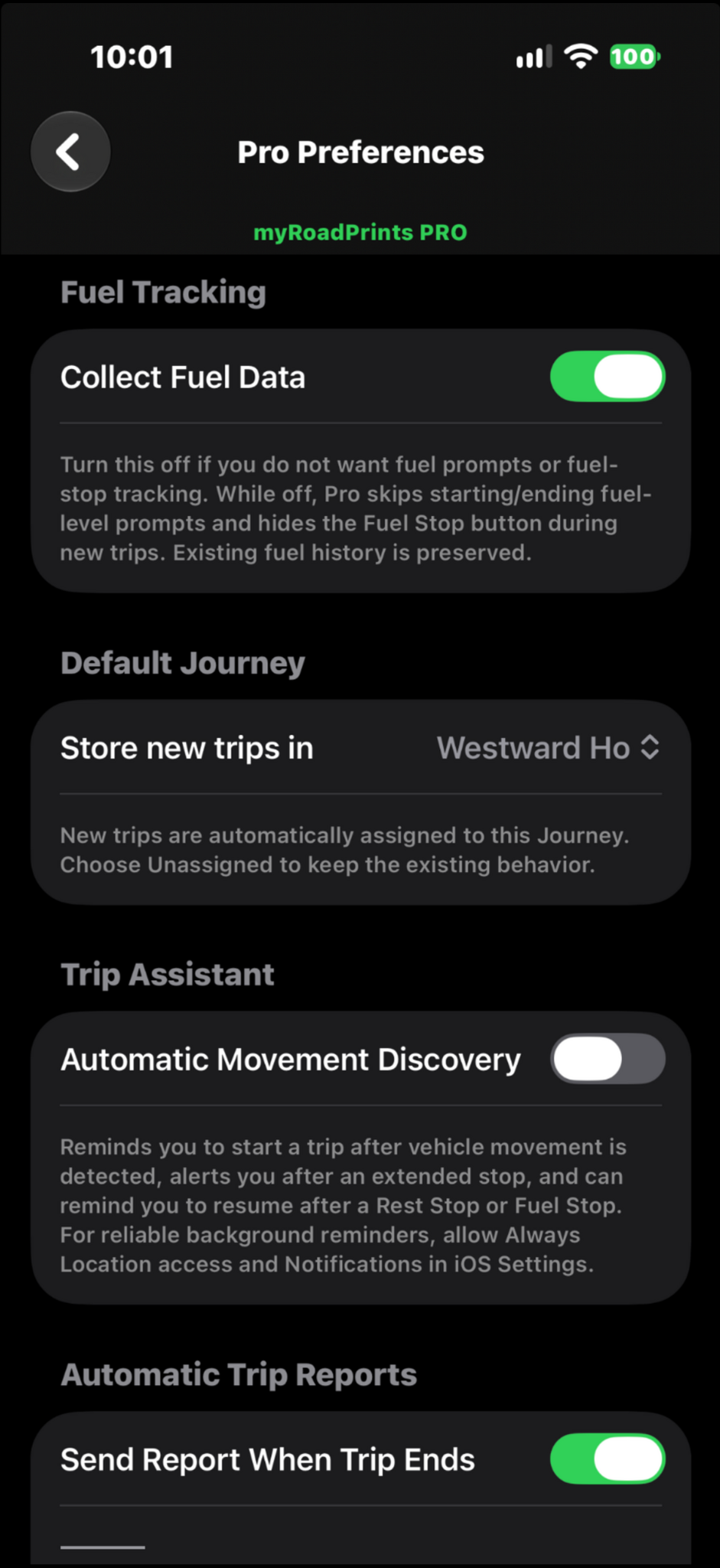
- Open Settings using the gear, then PRO FEATURE PREFERENCES.
- Collect Fuel Data: turn off to skip starting/ending fuel prompts and hide Fuel Stop during new trips. Existing fuel history remains intact.
- Default Journey: choose Store new trips in to automatically assign each new trip. Choose Unassigned to leave future trips ungrouped.
- Automatic Movement Discovery: turn on to receive a start-trip reminder after vehicle movement, alerts after extended stops, and resume reminders after a rest or fuel stop. Enable Always Location and Notifications for reliable background reminders.
- Send Report When Trip Ends: enable the optional automatic trip-report setting and review its sharing preferences.
8. Back up your trip records
Use the CSV export and restore tools to keep a separate backup of trip history. Save the backup outside the app so the records remain available if you replace or reset your device.
Need help?
Visit the Support page or email support@myroadprints.com. Include your device model, iOS version and app build number.

